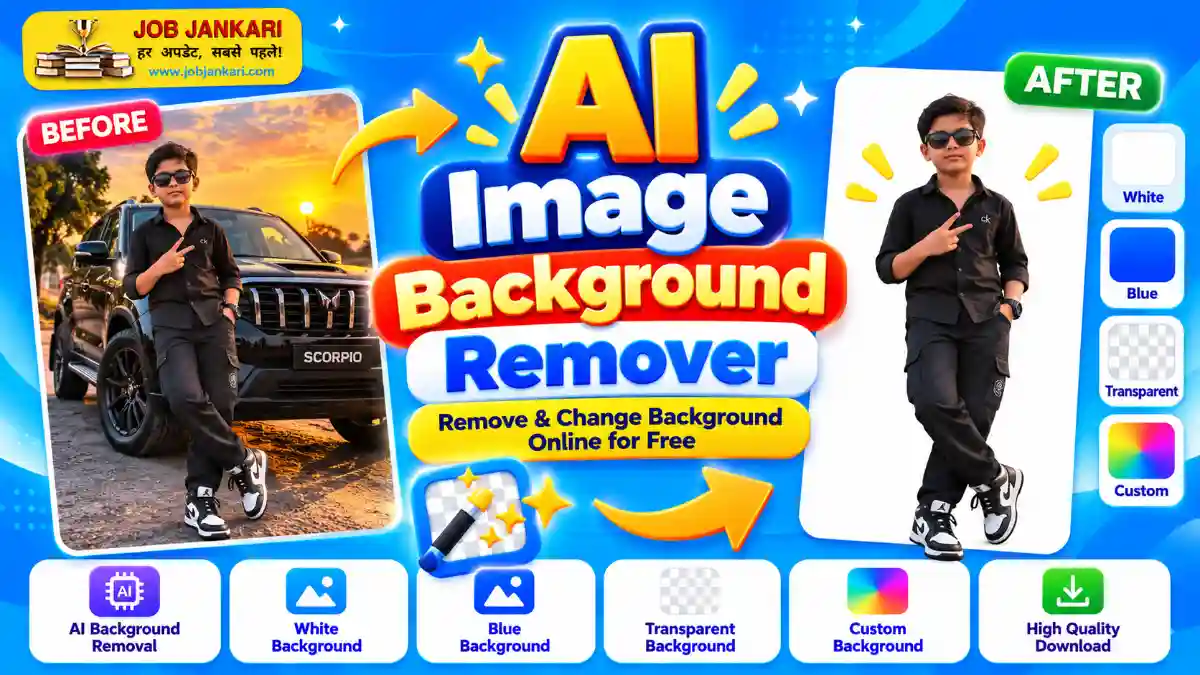
Free AI Image Background Remover Online – Change Photo Background to White
Want to remove an unwanted background from your photo? With the free AI Image Background Remover from JobJankari, you can remove a photo background online and replace it with white, blue, a custom color, a new image, or a transparent background.
You do not need advanced photo-editing skills or expensive software. Simply upload your image, click the Remove Background button, choose your preferred background, and download your edited photo.
Try the free tool here: Image Background Remover & Changer Online
What Is an AI Image Background Remover?
An AI image background remover is an online tool that identifies the main subject of a photo and separates it from the background. This makes it easier to remove unwanted surroundings and create a cleaner image.
For example, you can use it to remove a room background from a portrait, create a plain white photo background, prepare a product image for an online store, or make a transparent PNG for a design project.
JobJankari’s Image Background Changer lets you remove the background and customize the result in your browser.
How to Remove Image Background Online for Free
Follow these simple steps to change your photo background.
Step 1: Open the Image Background Remover
Visit the free Image Background Changer tool on JobJankari.com.
Step 2: Upload Your Photo
Click Choose Image or drag and drop your photo into the upload area. The tool supports JPG, PNG, and WEBP images up to 20 MB.
Step 3: Remove the Background
Click Remove Background. The AI background-removal component will load and process your image in your browser. The first use may require downloading the AI model, so processing can take some time depending on your internet connection and device.
Step 4: Choose a New Background
After the background is removed, select the background style you want. You can choose white, light blue, blue, light gray, a custom color, a custom image, or a transparent background.
Step 5: Preview and Download
Use the before-and-after preview to inspect your result. Adjust the image if needed, select the available download format, and download your edited photo.
Start editing your photo: Use the Free Background Remover
Change Photo Background to White
A white background is useful for many types of photos, including product photography, profile pictures, document images, and other designs that require a clean appearance.
To make your photo background white:
- Upload your photo to the tool.
- Click Remove Background.
- Select the White background option.
- Check the edges around your subject.
- Download the finished image.
For the best result, use a clear, well-lit photo in which the subject is easy to distinguish from the background.
Please check the photo specifications of the organization or service where you intend to submit your image. Changing the background alone does not guarantee that a photo meets official passport, identity document, or application requirements.
Main Features of JobJankari Image Background Changer
1. AI-Powered Background Removal
Remove the existing background from supported photos using the tool’s AI-based background-removal component.
2. White Photo Background
Replace the original background with white for a simple, clean appearance.
3. Blue and Light Blue Backgrounds
Choose blue or light blue when you need a different background color for a photo or design.
4. Transparent Background
Keep the subject without a solid background and export it as a PNG when you need transparency.
5. Custom Background Colors
Choose your own color using the color picker. You can enter a HEX color value to select a specific shade.
6. Custom Background Image
Use another image as the background to create a different look for your photo.
7. Before-and-After Preview
Compare the original photo with the edited result before downloading. This helps you inspect the background removal and check the visible edges.
8. Crop and Size Options
Use the available crop presets or custom dimensions to prepare an image for different layouts. Always verify the required dimensions before submitting a photo for an official purpose.
9. Multiple Download Formats
Download the edited result in an available format such as PNG, JPG, or WEBP, depending on your needs.
10. No Account Required
You can use the tool without creating a JobJankari account.
Is the Image Background Remover Free?
Yes. The JobJankari Image Background Changer is available to use for free without signing up.
The first time you remove a background, the browser may need to download the AI model. This can make the first operation slower than subsequent uses. A stable internet connection and a compatible, updated browser can help.
Are My Photos Uploaded to a Server?
Background removal and background customization are designed to run in your browser. Your photo is not uploaded to or stored on the JobJankari server by this tool.
However, the tool loads its background-removal component and AI model from an external content delivery network when needed. If you are working with a sensitive image, review the relevant service information and use a device you trust.
Who Can Use an Online Background Remover?
An image background remover can be useful for:
- Students preparing images for projects and presentations.
- Job applicants who need to prepare photos for applications.
- Small business owners editing product pictures.
- Online sellers who want cleaner product images.
- Content creators preparing thumbnails and graphics.
- Anyone who wants to remove or change an unwanted photo background.
Remember that some official applications require specific photo dimensions, lighting, facial positioning, and background standards. Always check the applicable instructions before submitting an edited photo.
Tips for Getting Better Background Removal Results
For a cleaner result, follow these tips:
- Use a sharp photo with good lighting.
- Make sure the subject is clearly visible.
- Avoid photos where hair, clothing, or other edges blend into the background.
- Inspect the preview carefully before downloading.
- Try another photo if the tool does not separate the subject accurately.
- Choose PNG if you need to preserve a transparent background.
- Check the final dimensions and file format before uploading your image to another website.
Frequently Asked Questions
How can I remove a photo background online for free?
Open the JobJankari Image Background Changer, upload a supported image, click Remove Background, choose your preferred background, and download the result.
Can I change my photo background to white?
Yes. After removing the original background, select the White option and download the edited image.
Can I make my image background transparent?
Yes. Select Transparent after removing the background and download the result as PNG to preserve transparency.
Which image formats are supported?
The tool accepts JPG, PNG, and WEBP images up to 20 MB. Available download formats include PNG, JPG, and WEBP.
Can I use this tool on my mobile phone?
Yes. The tool is designed for modern mobile and desktop browsers. Processing speed may vary depending on your device and internet connection.
Why does background removal take longer the first time?
The tool may need to download its AI model before it can process your first image. The time required depends on your connection and device.
Does changing a photo background guarantee passport photo approval?
No. Background replacement alone does not guarantee approval. Check the official photo dimensions, background, lighting, and other requirements for your application.
Final Words
Removing an unwanted photo background does not have to be difficult. With JobJankari’s free AI Image Background Remover, you can remove the original background, select a new color or image, compare the result, and download your edited photo.
Whether you want a white photo background, a blue background, a transparent PNG, or a custom design, this online tool can help you prepare your image without installing traditional photo-editing software.
Ready to get started?
2 thoughts on “Image Background Changer BG”